Wireless Router Configuration Guide: A Step-by-Step Tutorial
Are you tired of dealing with slow and unstable internet connections? Getting your wireless router set up doesn't need to be complicated! In this comprehensive guide, we'll walk you through the simple steps to configure your wireless router and get the most out of your home network.
Before You Begin
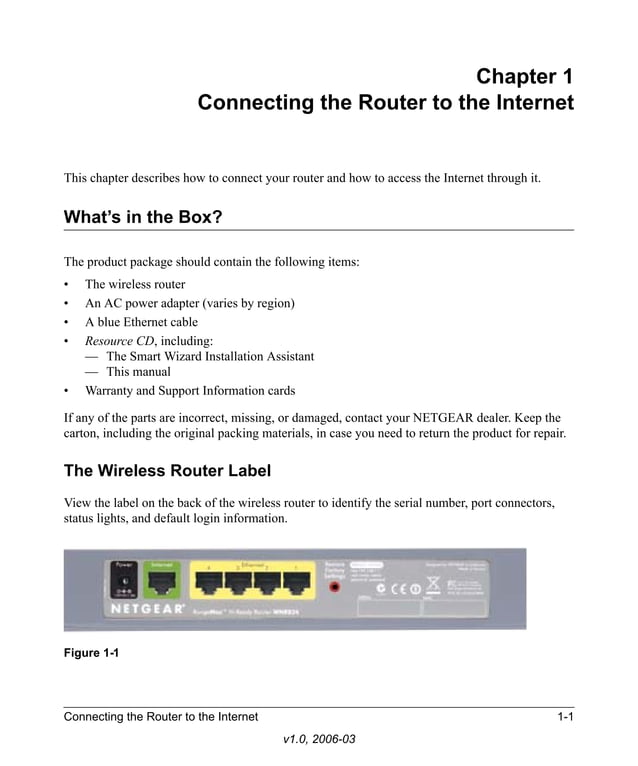
- Make sure you have your wireless router, modem, and all the necessary cables.
- Check your internet service provider (ISP) for any specific configuration requirements.
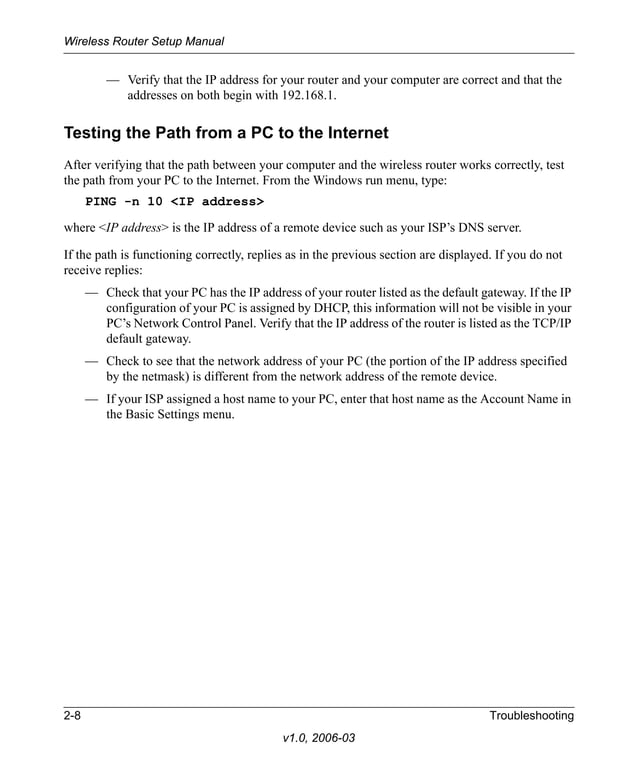
- Know your router's IP address, which is usually 192.168.1.1 or 192.168.0.1.
Step 1: Unboxing and Physical Setup
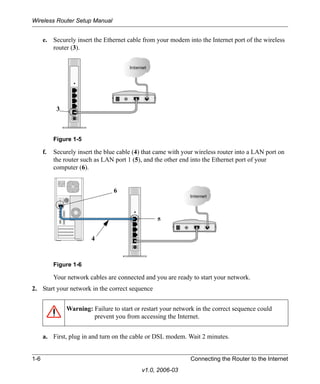
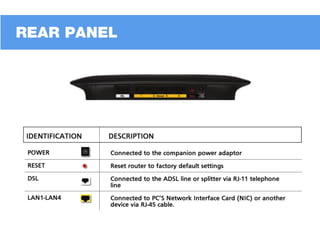
Start by unpacking your wireless router and modem. Locate the device's power button and plug in the power cord. Connect the modem to the router using an Ethernet cable.
Step 2: Initial Configuration
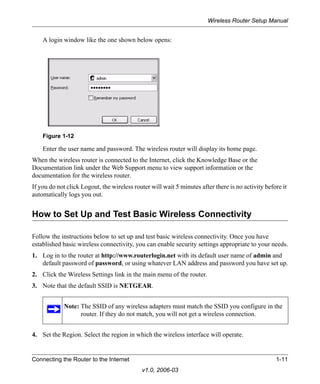
Connect a laptop or computer to the router using an Ethernet cable. Open a web browser and type in the router's IP address. This will take you to the router's login page. Log in using the default administrator username and password, which can usually be found on the underside of the router or in the user manual.
Step 3: Changing the Default Username and Password
As soon as you log in, change the default username and password to a more secure one. You can do this by going to the router's settings page and looking for the "Admin" or "Login" section.
Step 4: Wi-Fi Settings
Configure your Wi-Fi settings by going to the "Wireless" or "Wi-Fi" section. Here, you can change the network name (SSID), set a strong password, and configure other advanced settings.
Step 5: Security Settings
Enable WPA2-PSK (the most secure option for home networks) and configure your security settings. Turn on the firewall if it's not already active to add an extra layer of protection against outside threats. Disable WPS (Wi-Fi Protected Setup) to prevent unauthorized access.
Step 6: Advanced Configuration
Advanced configuration options vary depending on your router's make and model. Common settings include Quality of Service (QoS), port forwarding, and VPN settings. Make sure to consult your router's user manual or online documentation for specific instructions.
Step 7: Testing and Troubleshooting
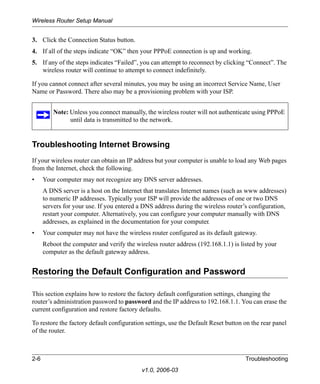
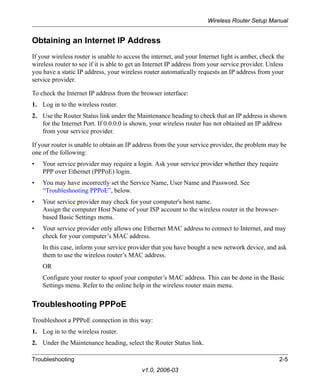
Test your internet connection by browsing the web or streaming content. If you experience any issues, consult your router's manual or online documentation for troubleshooting tips.
Conclusion
Configuring your wireless router doesn't have to be complicated. By following these simple steps, you'll be able to set up a secure and fast home network. Remember to consult your router's user manual or online documentation for specific instructions and troubleshooting tips. Happy configuring!
Additional Tips and Considerations
- Place your wireless router in a central location to maximize coverage.
- Use a wireless network analyzer to optimize your Wi-Fi settings.
- Regularly update your router's firmware to ensure you have the latest security patches and features.
- Use a strong and unique password for your Wi-Fi network.




![[Wireless Router] How do I enter my ASUS router's setting page using ...](https://device.report/m/9f1f5df80211f2cb4fd912b178217c56ebb8fbe47b5bfb98d489d9fdb668bfba.png "[Wireless Router] How do I enter my ASUS router's setting page using ...")