Google Wi-Fi Configuration Steps: A Comprehensive Guide
Setting up a reliable and fast internet connection is essential for both personal and professional activities in today's digital age. Google Wi-Fi is a popular mesh network system that provides a seamless internet experience to all devices in your home or office. In this article, we will walk you through the Google Wi-Fi configuration steps, making it easy to get the most out of your internet connection.
Prerequisites for Google Wi-Fi Configuration
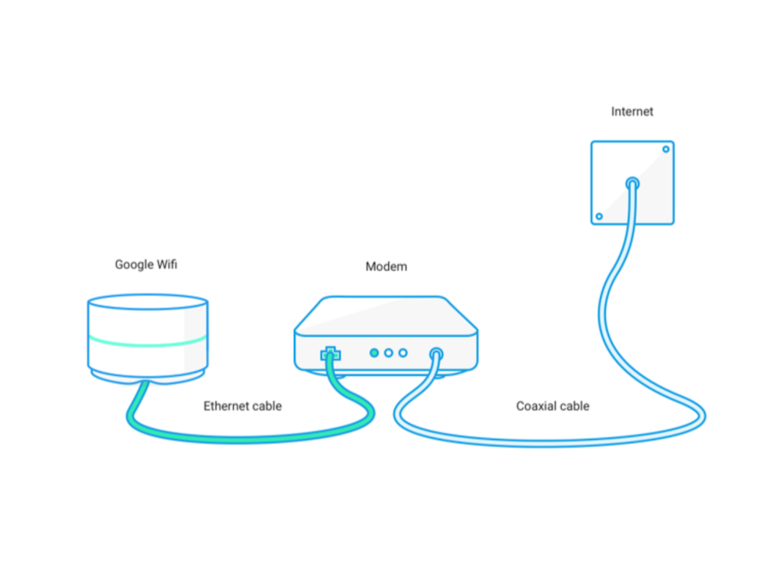
To set up Google Wi-Fi, you will need the following:
- Nest Wi-Fi router or Nest Wi-Fi Pro router
- Nest Wi-Fi points or Google Wi-Fi points for mesh network expansion
- Google Home app
- Internet service provider (ISP) credentials
Step 1: Unbox and Place Your Google Wi-Fi Points
Unbox your Google Wi-Fi points and place them in a central location in your home or office. Ideally, place them in a spot where they have a clear line of sight to each other.
Step 2: Plug in Your Google Wi-Fi Points
Plug in your Google Wi-Fi points to a power outlet. Make sure they are properly seated and securely connected.
Step 3: Download and Install the Google Home App
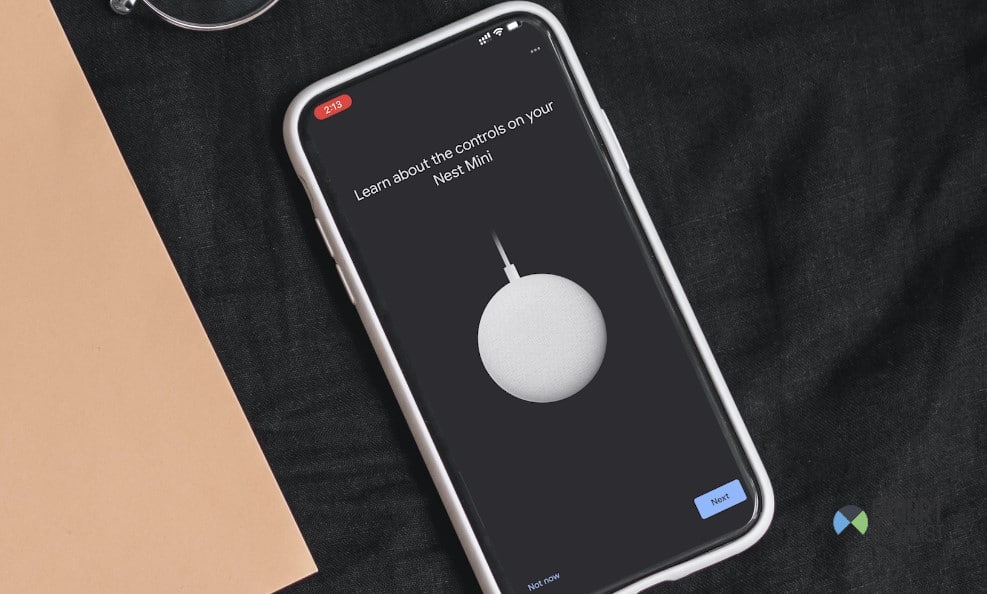
Download and install the Google Home app on your smartphone or tablet. This app will guide you through the setup process and help you configure your Google Wi-Fi network.
Step 4: Set Up Your Google Wi-Fi Network
Open the Google Home app and begin the setup process. Your phone will look for nearby devices, and when prompted, scan the QR code on the bottom of the Wi-Fi point. Follow the in-app instructions to complete the setup process.
Step 5: Configure Your Wi-Fi Network Settings

Once you have completed the setup process, the app will download and install the Google Wi-Fi software, which includes the latest features and security measures. This can take up to 10 minutes. After the software is installed, you can configure your Wi-Fi network settings, including:
- Wi-Fi SSID and password
- Network name and type
- Guest network settings
- Advanced network settings
Step 6: Add Google Wi-Fi Points to Your Network
Follow the in-app instructions to add additional Google Wi-Fi points to your network. This will expand your mesh network coverage and provide a stronger internet signal throughout your home or office.
Step 7: Test Your Network
After completing the setup process, test your network to ensure it is working properly. Check for internet connectivity, Wi-Fi signal strength, and network performance.
Conclusion
Setting up Google Wi-Fi is a straightforward process that requires minimal technical expertise. By following these Google Wi-Fi configuration steps, you can create a reliable and fast internet network that meets your needs. Remember to test your network after completing the setup process to ensure it is working properly.
Frequently Asked Questions
Here are some frequently asked questions about Google Wi-Fi configuration:
- Q: What are the system requirements for Google Wi-Fi?
- A: You will need a Nest Wi-Fi router or Nest Wi-Fi Pro router, a compatible smartphone or tablet, and a Google Home app account.
- Q: How do I configure my Google Wi-Fi network settings?
- A: You can configure your Wi-Fi network settings, including SSID and password, network name and type, guest network settings, and advanced network settings, using the Google Home app.
- Q: Can I add additional Google Wi-Fi points to my network?
- A: Yes, you can add additional Google Wi-Fi points to your network to expand your mesh network coverage and provide a stronger internet signal throughout your home or office.
Additional Resources
For more information about Google Wi-Fi configuration, please visit the Google Support website or consult the Google Wi-Fi user manual. You can also check out online tutorials and videos that provide step-by-step instructions for setting up and configuring your Google Wi-Fi network.