Network Router Configuration IP Address: A Comprehensive Guide
Setting up a network router is a crucial step in establishing a secure and reliable network for your home or business. However, getting the right IP address configuration is often a complex process. In this article, we'll guide you through the network router configuration IP address setup, providing you with the necessary information to manage your network devices efficiently.
Understanding Router IP Address
A network router's IP address is the unique address assigned to the router on your network. It's used to identify the router and help devices communicate with each other. There are two types of IP addresses: static and dynamic. Static IP addresses are manually assigned, while dynamic IP addresses are automatically assigned by the router.
Why is it Important to Configure Network Router IP Address?
Enables you to access your network settings and manage devices connected to your network.
Helps to troubleshoot network issues and prevent security threats.
Allows you to configure your network's security settings, such as password and firewall settings.
Enables you to optimize your network's performance by adjusting settings such as Quality of Service (QoS).
How to Configure Network Router IP Address
Configuring your network router IP address involves the following steps:
Step 1: Find Your Router's IP Address
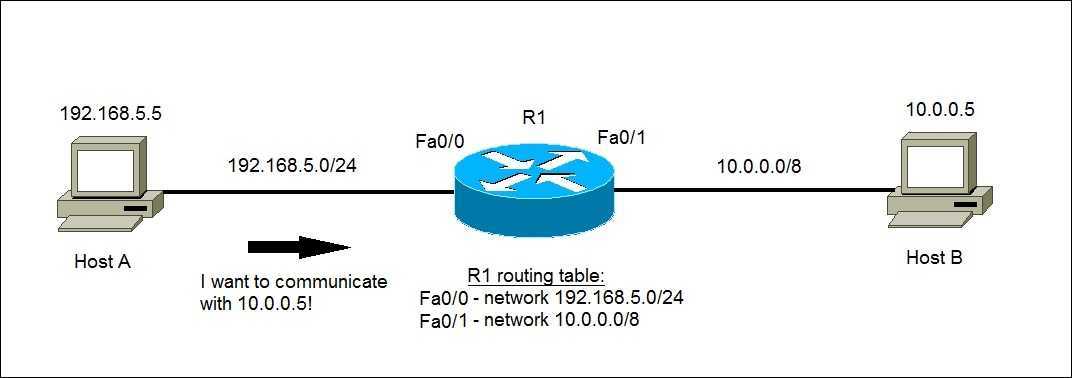
To access your network router configuration page, you need to know the IP address of your router. You can find this address by checking your device's network settings or by consulting your router's manual.
Methods to Find Your Router's IP Address:
Command Prompt (Windows): Type `ipconfig` and look for the default gateway.
PowerShell (Windows): Type `Get-NetIPConfiguration` and look for the default gateway.
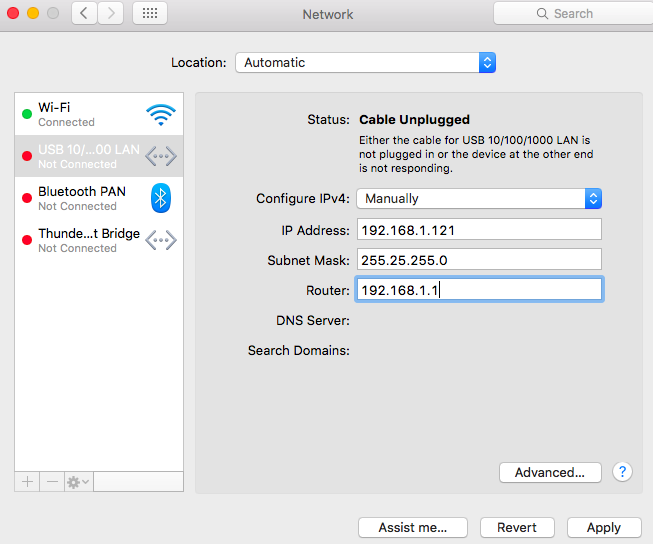
Network settings (Windows, macOS, or Linux): Check the network adapter settings for the default gateway.
Router manual: Check your router's manual for the default IP address.
Step 2: Access Your Router's Configuration Page
Once you have your router's IP address, open a web browser and type the address in the address bar. You will be prompted to enter the default username and password. The default login credentials are usually printed on the underside of your router or in the user manual.
Step 3: Configure Your Network Router IP Address
Upon logging in, you will have access to the network router configuration page. From here, you can configure the following:
Change the router's name and password.
Configure Wi-Fi settings, including SSID and password.
Adjust security settings, such as firewall settings and parental controls.
Update the router's firmware.
Best Practices for Network Router Configuration IP Address
To ensure a secure and efficient network, follow these best practices:
Change the default login credentials to secure your router.
Set a strong password and enable WPA2 or WPA3 encryption.
Regularly update your router's firmware to ensure security patches and performance improvements.
Use a VPN to secure your network traffic.



![[Wireless Router] How do I enter my ASUS router's setting page using ...](https://study-ccna.com/wp-content/uploads/2018/09/configure_ip_address_switch_topology.jpg "[Wireless Router] How do I enter my ASUS router's setting page using ...")