Reset Your Google Wi-Fi Network with a Hard Factory Reset
Are you struggling with a slow or unresponsive Wi-Fi network? Have you tried restarting your router and modem, but to no avail? If so, it's time to try something more drastic: a hard factory reset of your Google Wi-Fi network. In this comprehensive guide, we'll walk you through the process of resetting your Google Wi-Fi network to its factory settings, ensuring you maintain a strong and stable connection.
What is a Hard Factory Reset?
A hard factory reset is a process that restores your Wi-Fi network to its default settings, erasing all current settings and data. This means that any custom settings, network names (SSID), and passwords will be deleted. After a hard factory reset, you'll need to set up your router and any connected devices again.
Why Should I Perform a Hard Factory Reset?
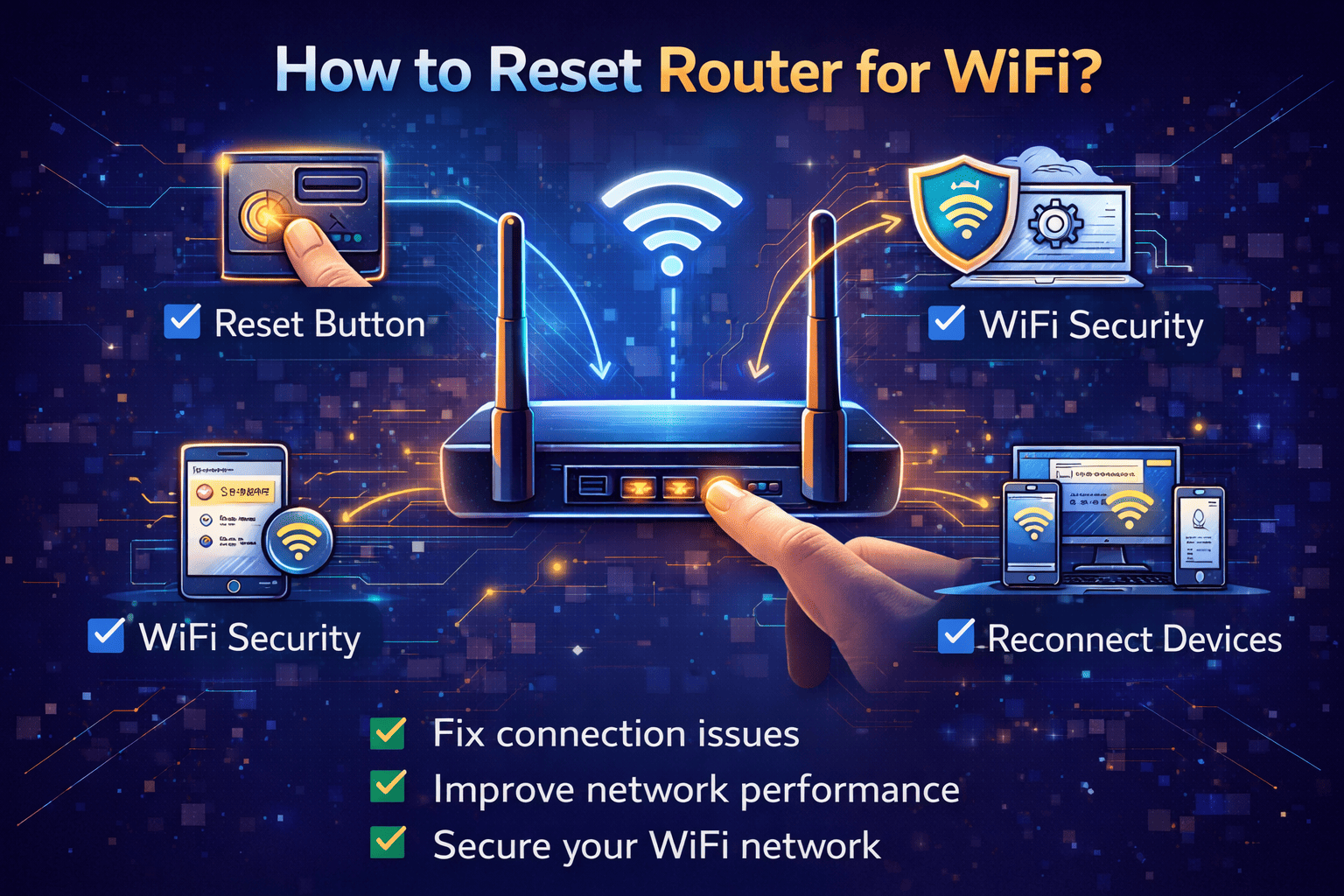
A hard factory reset is useful for several reasons:
- Fixes connectivity issues: A hard factory reset can resolve connectivity problems, such as dropped connections or slow data transfer speeds.
- Restores performance: By resetting your network to its default settings, you can restore its original performance and stability.
- Bypasses software issues: A hard factory reset can bypass any software glitches or bugs that may be causing problems with your network.
How to Perform a Hard Factory Reset on Your Google Wi-Fi Network
Method 1: Using the Google Home App
To perform a hard factory reset using the Google Home app, follow these steps:
- Open the Google Home app on your phone.
- Tap the settings gear icon on the top right-hand side of the screen.
- Tap on "Nest WiFi"> "Factory Reset".
- Follow the prompts to complete the reset process.

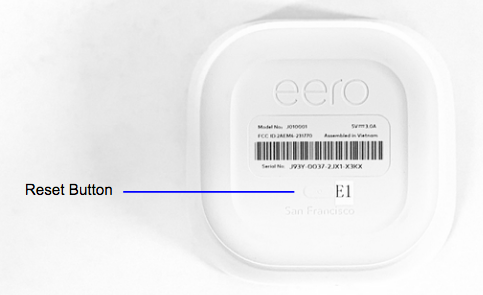
Method 2: Using the Reset Button
Alternatively, you can use the physical reset button on your Google Wi-Fi router. Here's how:
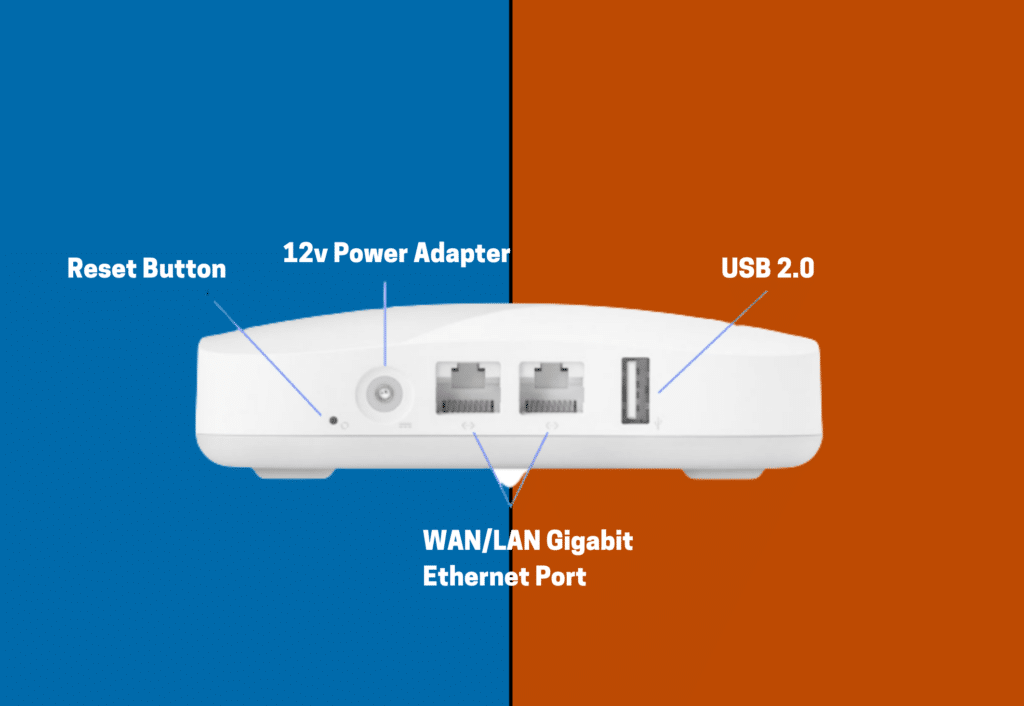
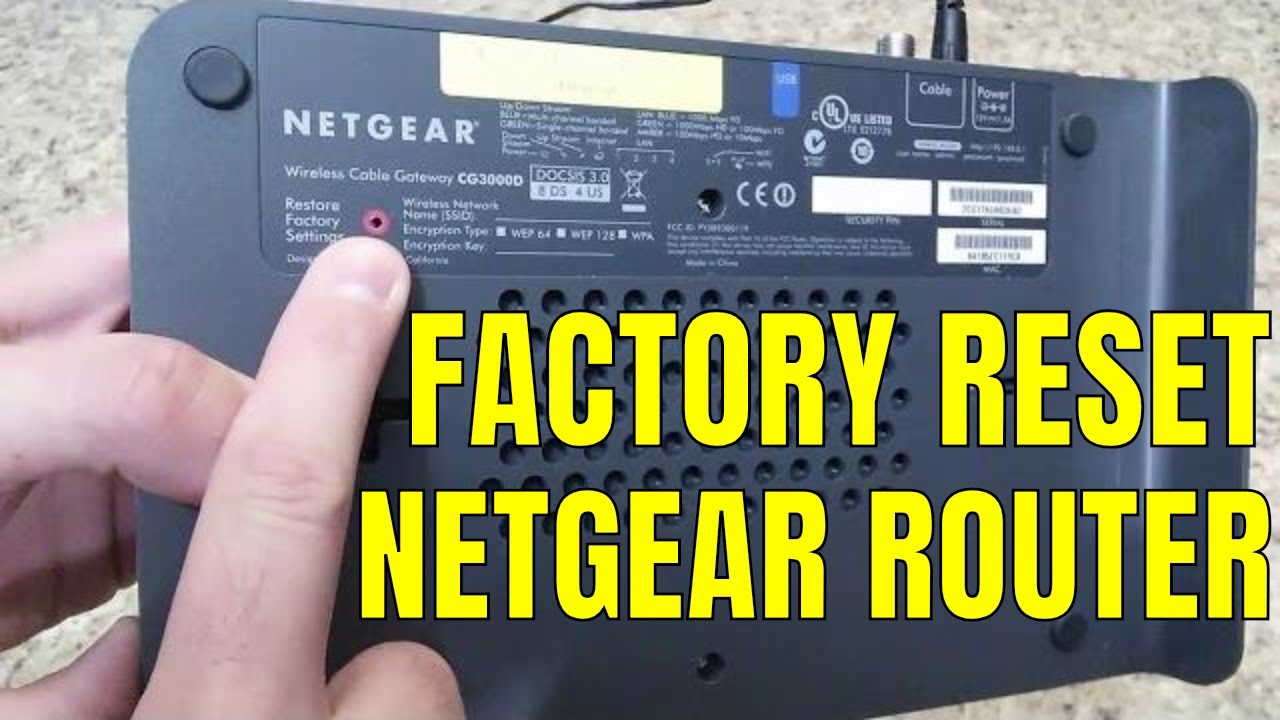
- Locate the reset button on the underside of your router.
- Press and hold the reset button for 10 seconds.
- Release the button and wait for the router to complete the reset process.
Things to Keep in Mind
When performing a hard factory reset, keep the following in mind:
- All data and settings will be deleted.
- You'll need to set up your router and connected devices again.
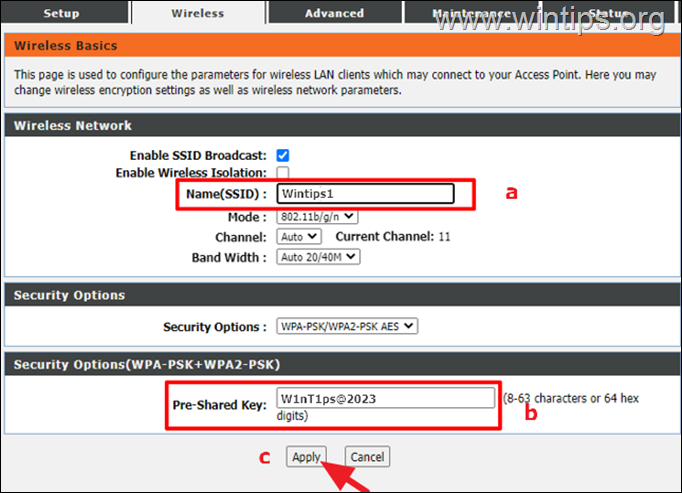
- Your network name (SSID) and password will be reset to their default settings.
Conclusion
A hard factory reset is a powerful tool for resolving connectivity issues and restoring your Google Wi-Fi network to its original settings. By following the steps outlined in this guide, you can perform a hard factory reset and enjoy a fast, stable, and reliable Wi-Fi network again. Remember to set up your router and devices again after the reset process is complete.
Has this article helped you understand how to perform a hard factory reset on your Google Wi-Fi network? Share your questions or thoughts in the comments below!